
After you have been using your account for an extended period you will find that the your report section will have quite the history of sent campaigns. The subject matter of each campaign will change over time especially if you sent more than one type of communication out of the one account.
Within the Report section you can create folders to help you sort your sent campaigns and surveys. From the side menu you are able to create/rename/share/delete folders.
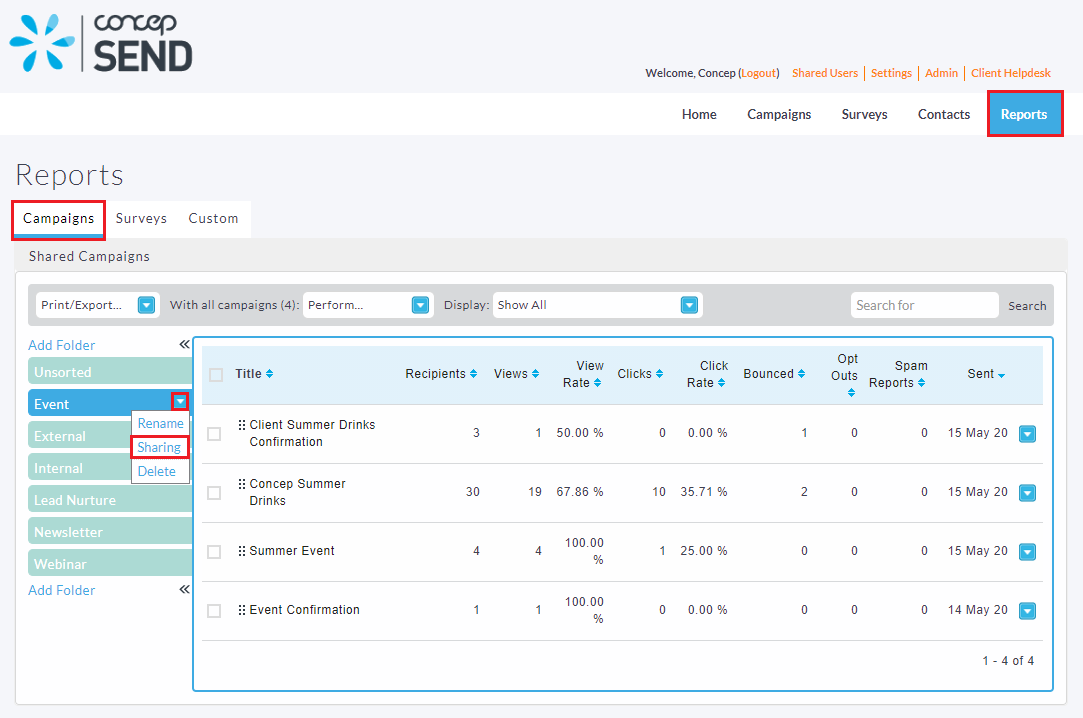
Click the Add folder button to create another folder, from there it will prompt you to name the folder. This is where you can implement any internal naming conventions that you have actively in use.
But some easy suggestions for folder sorting:
- you could have a folder for each of your communication types (newsletters, events, announcements)
- or if you only send one type of communication out of your account you could separate them into months/quarters/years.
By doing this you can easily track how your engagement changes over time along with your recipient lists, subject lines, clicks and views.
To move a campaign/survey into a different folder simply click and drag the dotted icon and then release the mouse when hovered over the intended folder, like so:
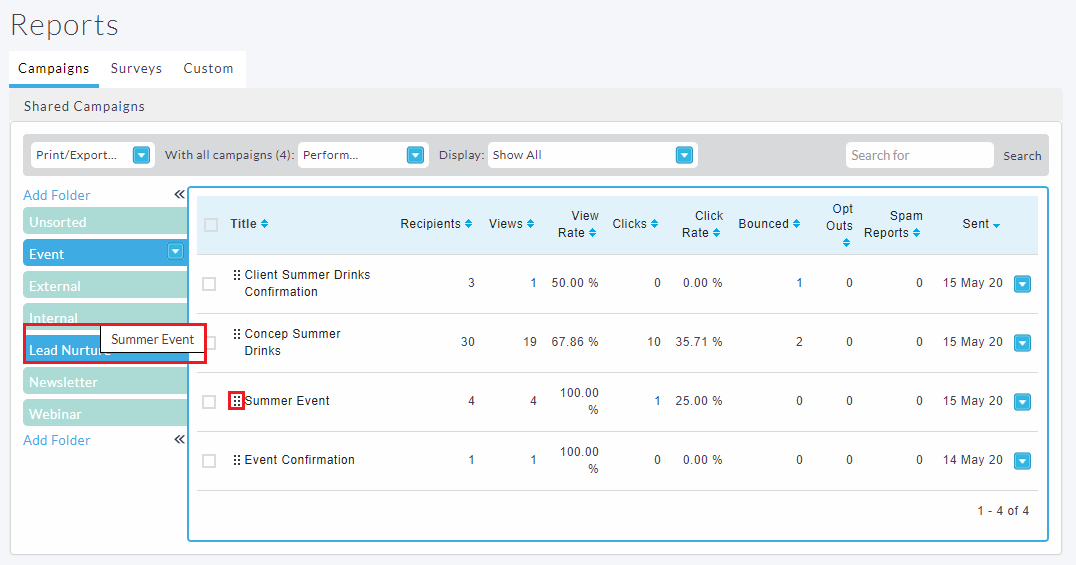 This same method can be implemented for surveys under the surveys tab (Reports --> Survey). The only difference for surveys is that they can be disabled or deleted entirely from your account. For example, in most situations will you probably won't want a invitation survey to be active weeks/months/years after the event has finished, to avoid possible confusion with recipients it is always best to disable past surveys.
There are two ways to disable a survey, first is to set a close date on the survey at the time of creation/editing. Setting a close date will ensure that the survey will automatically disable itself at the specified time and date. You can also include a message, like so:
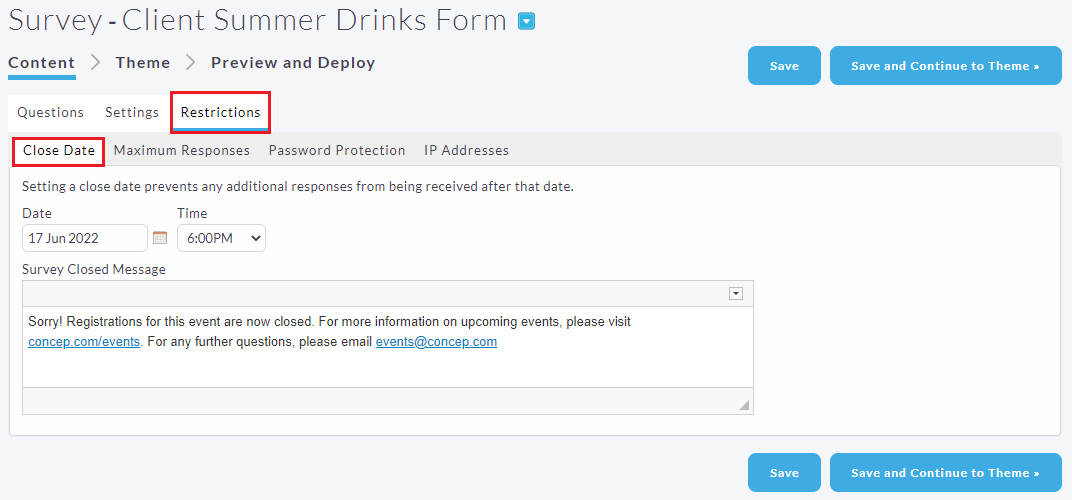
This also works for Maximum responses which is available under the same section.
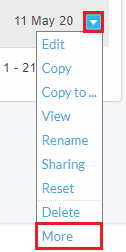
You can also disable a survey manually, this can be done by accessing "more" option from the drop down menu, after that click the "Collectors" tab.
 |
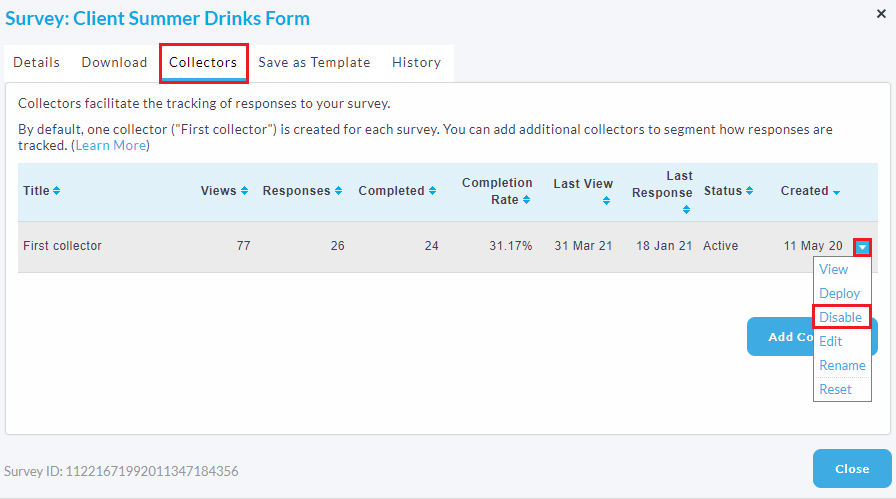 |
From the Collectors tab you can see all the collectors, disabling the active collector will prevent any further submission from being entered and submitted. And of course the final method for "disabling" a campaign would be to delete the survey entirely, the disadvantage of doing this is that the survey will no longer be available to copy from.
Comments
0 comments
Please sign in to leave a comment.