
An A/B test allows you to create multiple versions of a campaign – for example with different subject lines, calls to action, or other content – and then automatically send those different versions to a subset of your total recipients.
The version that results in better metrics based on the criteria you define will then be sent to the remainder of your recipients after a designated period of time.
NOTE: We recommend adding all of the recipients to your campaign before proceeding with the steps below so that you can easily see the sample size.
Create A/B Test
- Go to the Content step of an in progress campaign.
- Just below the subject line, click the Show text link next to the "Advanced" heading.
- Click the Create A/B Test text link.
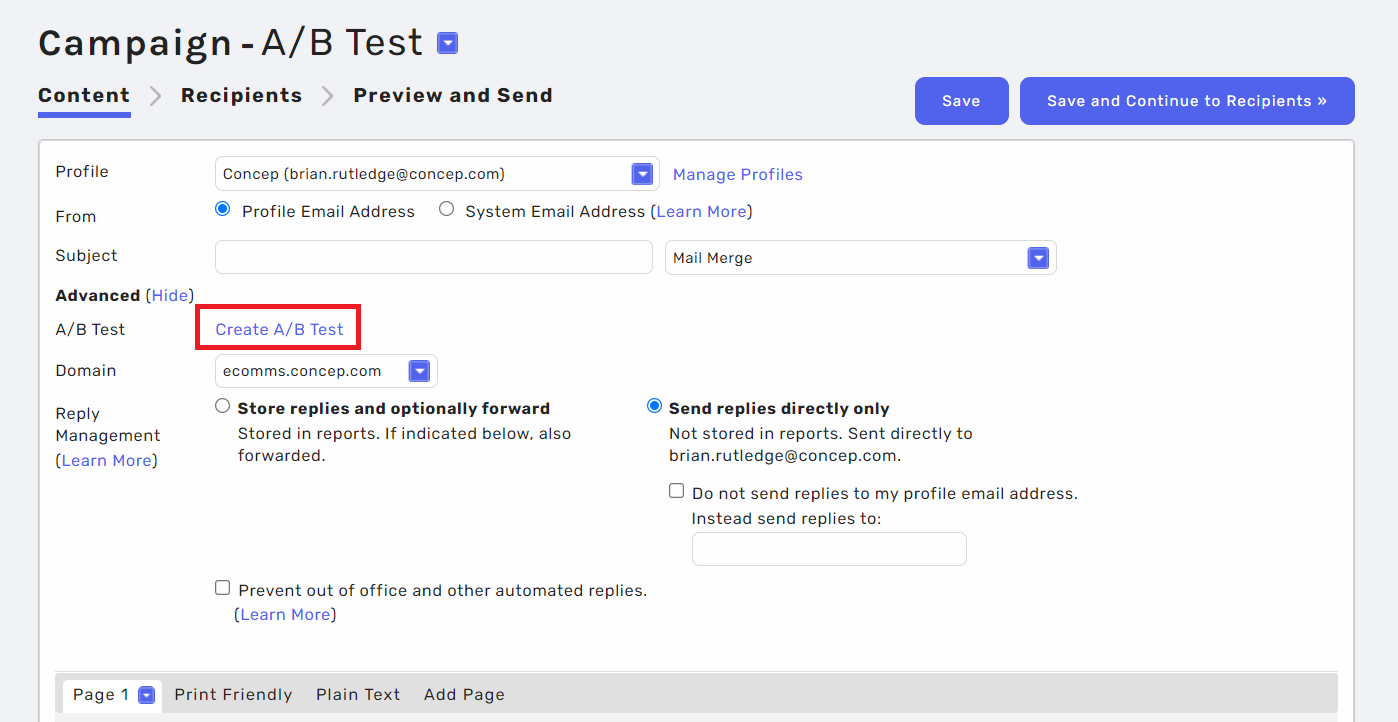
- Click OK, and a second version of your campaign will automatically be created as an exact copy of the first. You might want to rename the tabs to better represent the changes you're making.
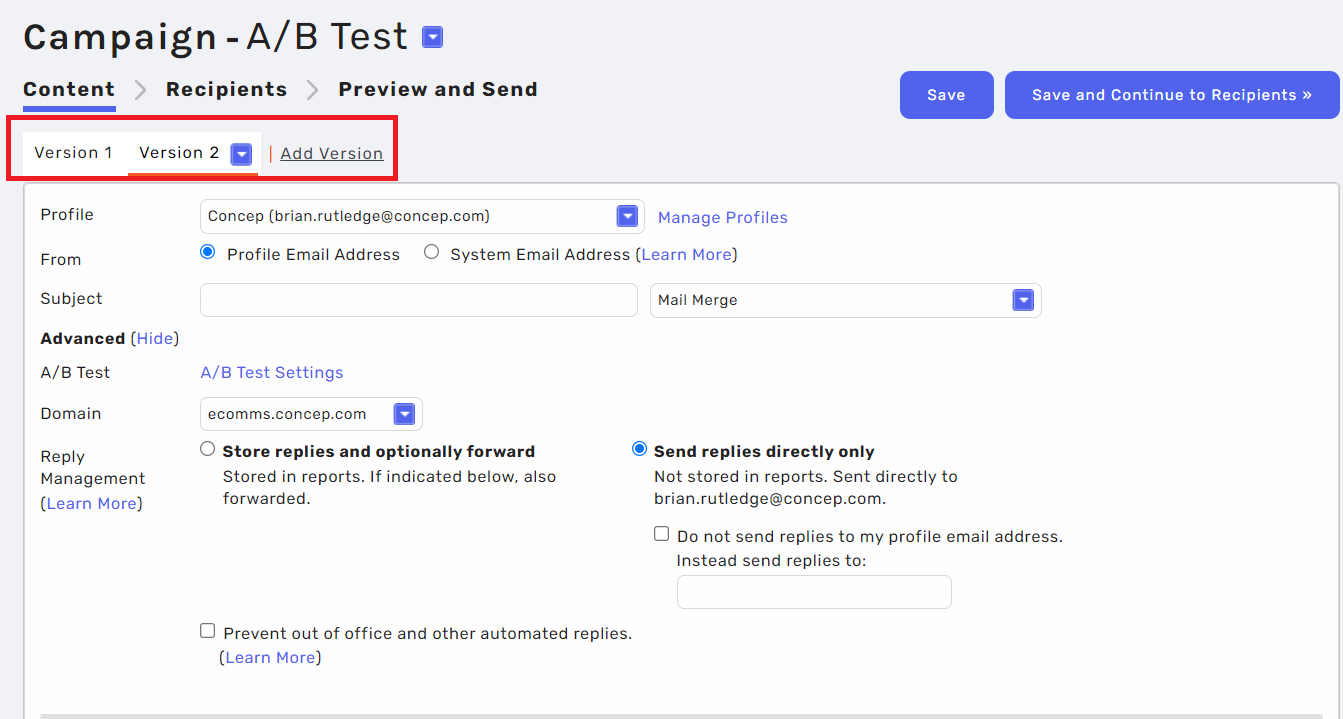
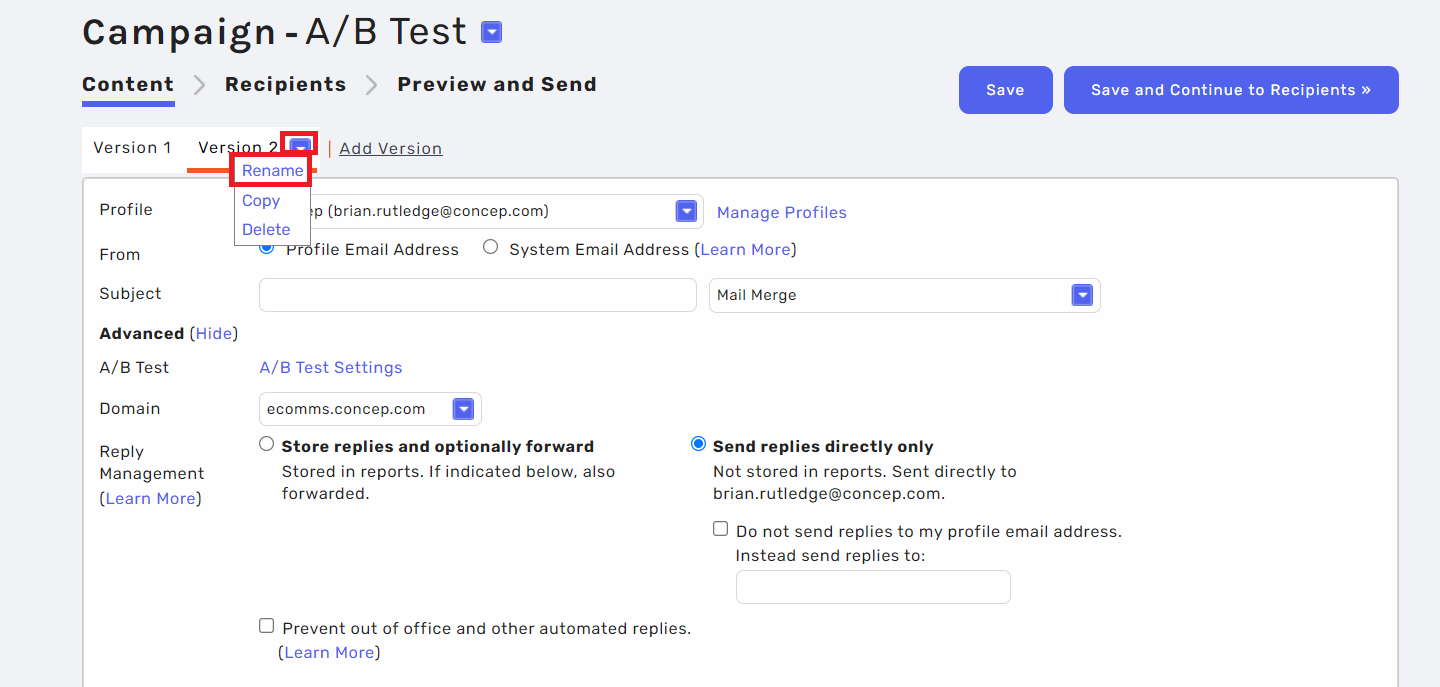
- Modify the content of the second version as desired for example by changing the subject line. Click Add Version text link to add additional versions. You can also rename the default Version 1 and Version 2 by clicking the down arrow icon next to the version name.
- Click the A/B Test Settings text link.
- By default, the different versions of your campaign will be setup to be sent to equal segments of random recipients representing 20% of your total recipients. Drag the arrow icon to adjust the sample size. A minimum sample size totaling at least 1,000 recipients is recommended for optimum results.
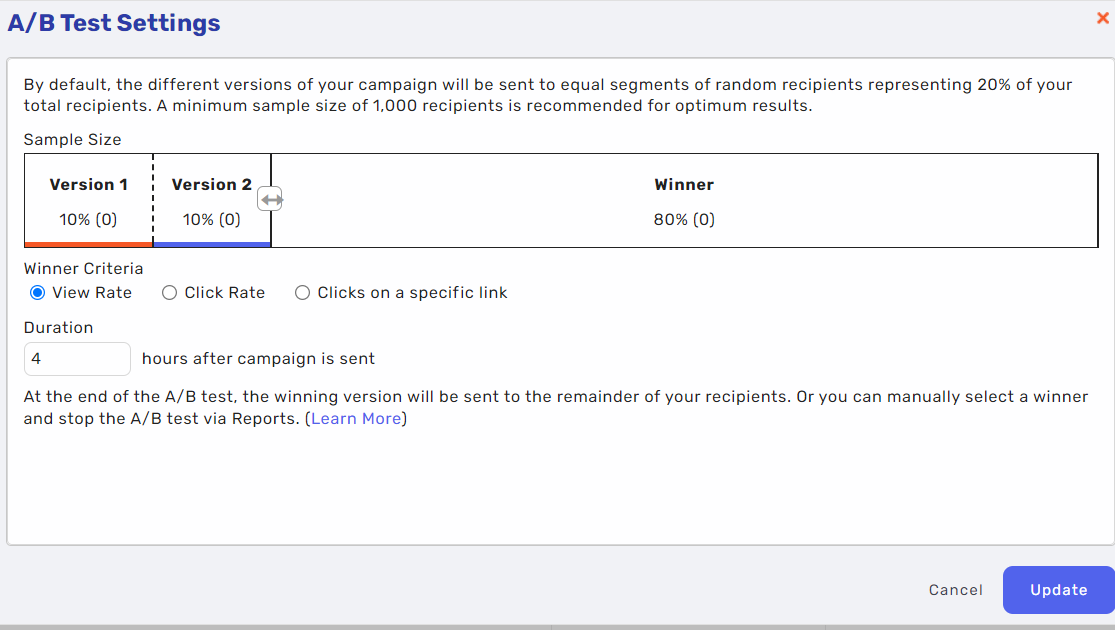
- Select the criteria on which the winning version should be selected: unique view rate, unique click rate, or unique clicks on a specific link.
- By default, the A/B test will run for 4 hours after the campaign has been sent. You can enter a different duration if desired.
A/B Test in Campaigns
Firstly, go to Settings > My Settings > Email
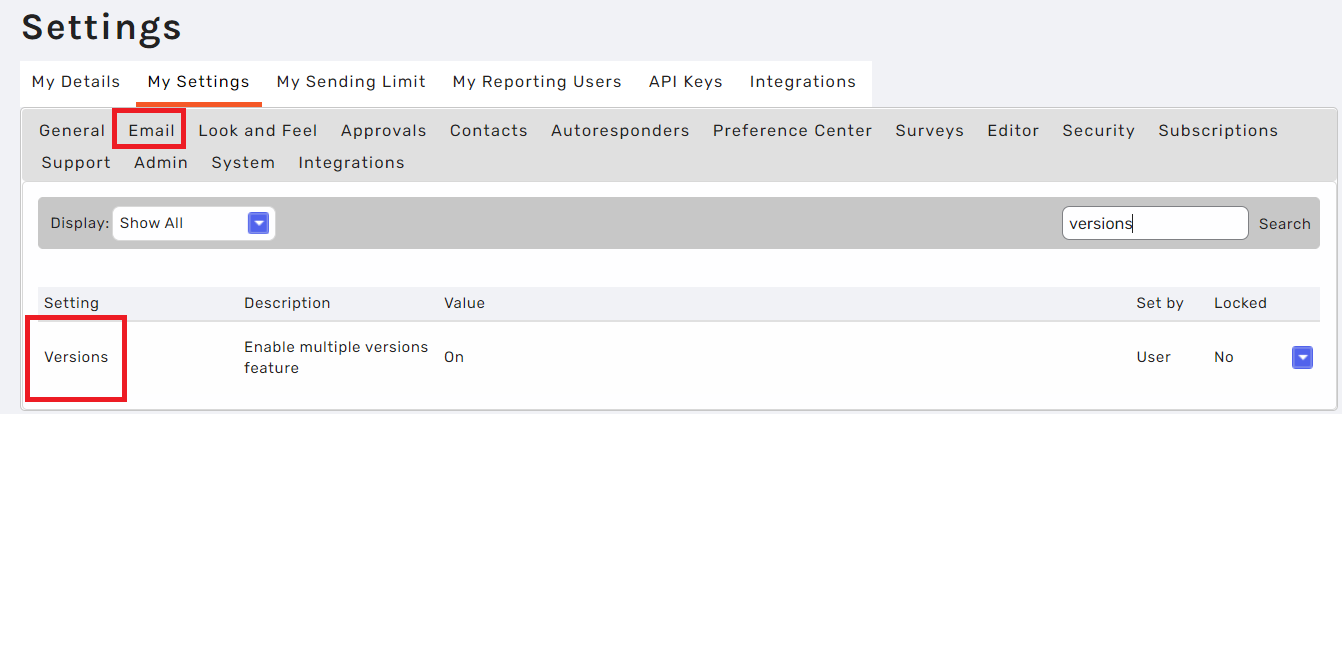 Then, scroll down to find the Features headline and set the Version option to On.
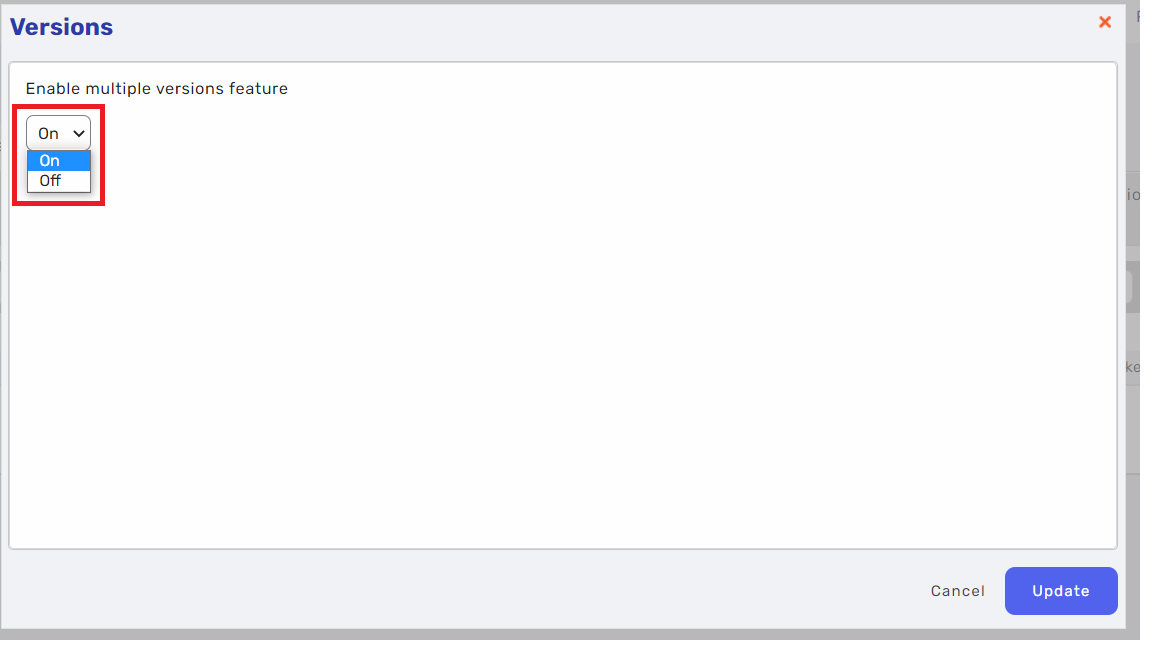
Once this has been activated, follow the same steps as shown above.
Comments
0 comments
Article is closed for comments.